> For the complete documentation index, see [llms.txt](https://modular.presidiocreative.com/llms.txt). Markdown versions of documentation pages are available by appending `.md` to page URLs; this page is available as [Markdown](https://modular.presidiocreative.com/faq/frequently-asked-questions/adding-sections.md).
# Adding sections
When adding a section to a certain template. The same content will appear on all pages that are also using that template.
You can create additional templates (such as a new page template or collection page template) and then assign them to your pages, products, collections, or blogs. This will allow you to create multiple pages with different content.
### Home page sections
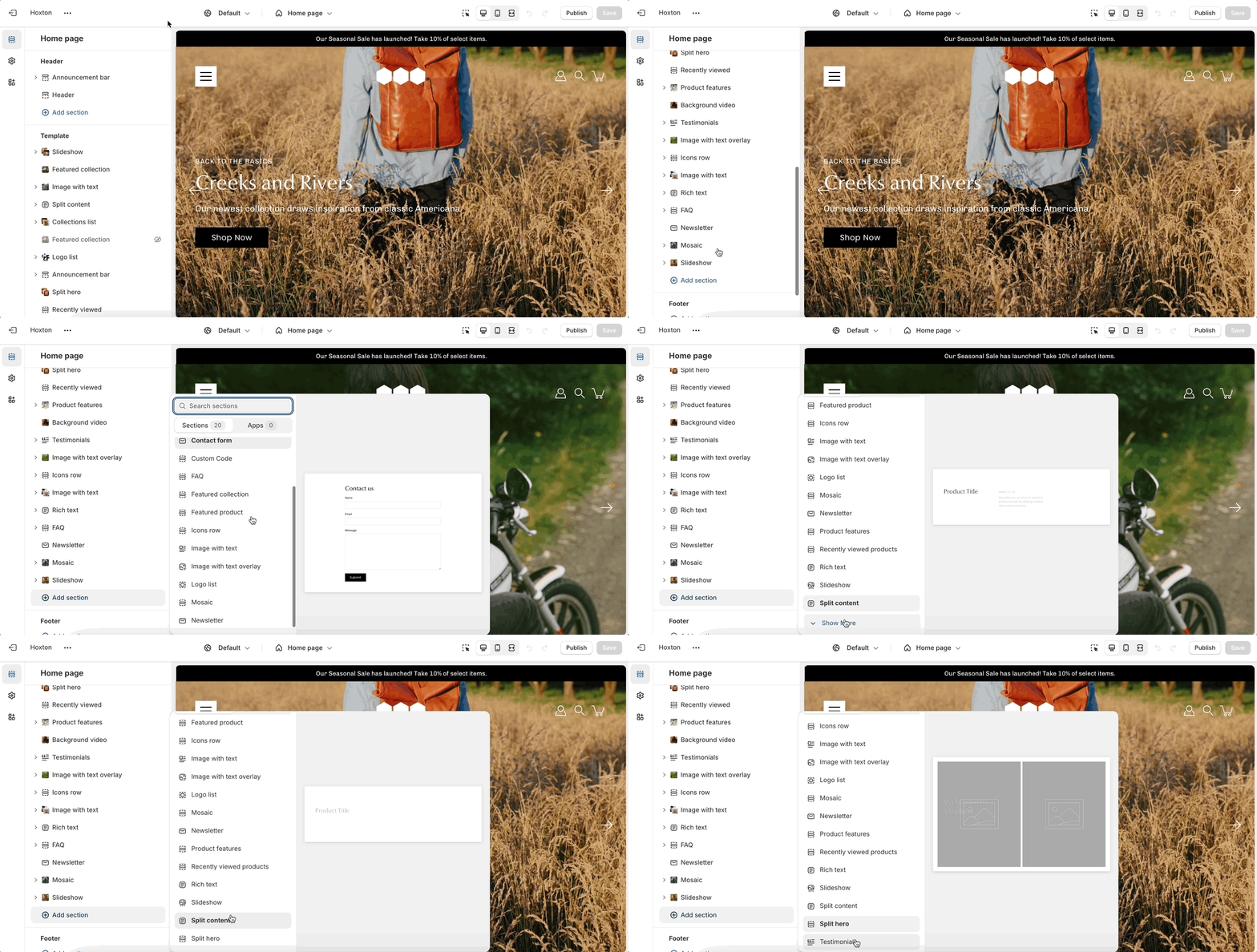
Scroll towards the bottom, above footer and popups. Choose to add section:
### Product page sections
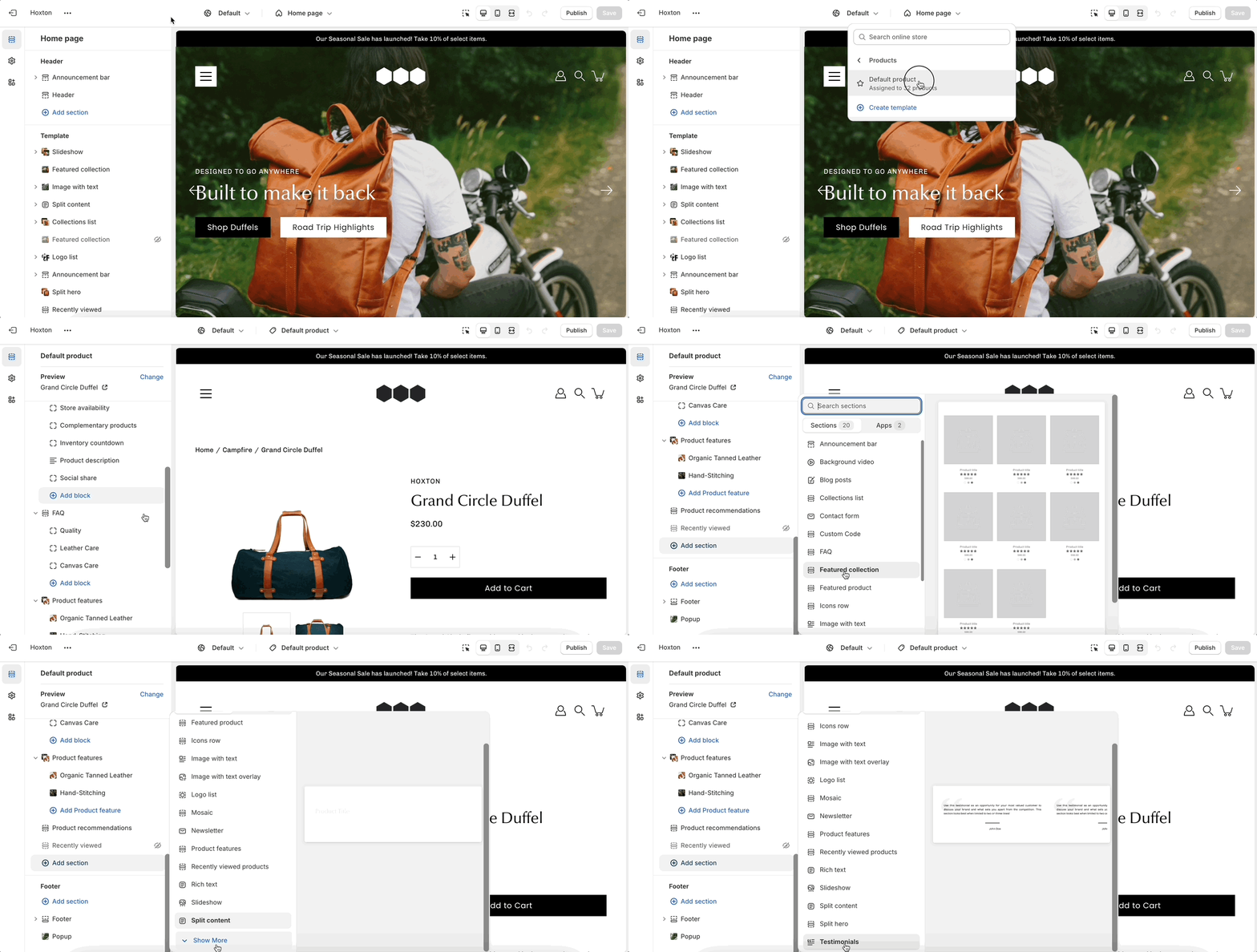
Navigate to any product page or choose the default product template. Use add section located above footer and popups:
### Other pages
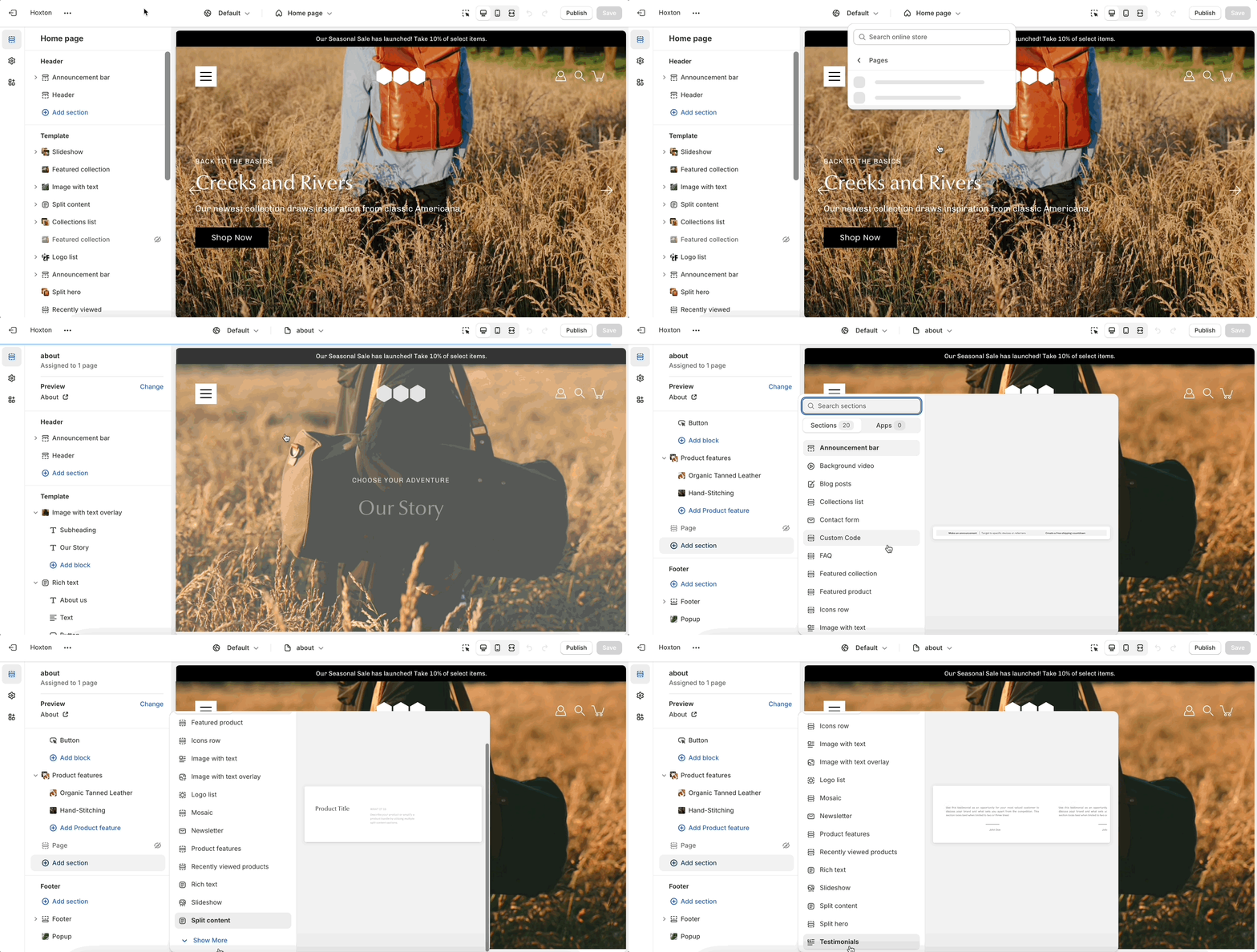
Navigate to any page on your site or choose any template from the top drop-down. Choose to add section, which is located above footer and popups on the left panel:
{% hint style="success" %}
New templates need to be created on the published theme. They will not appear as a template option for assignments if created in a draft theme.
This is a Shopify platform restriction. Always make new templates on the live/published theme.
{% endhint %}