Display options for product reviews app in Modular
Modular has built-in support for Shopify's product reviews app. Star ratings can be shown throughout the theme.
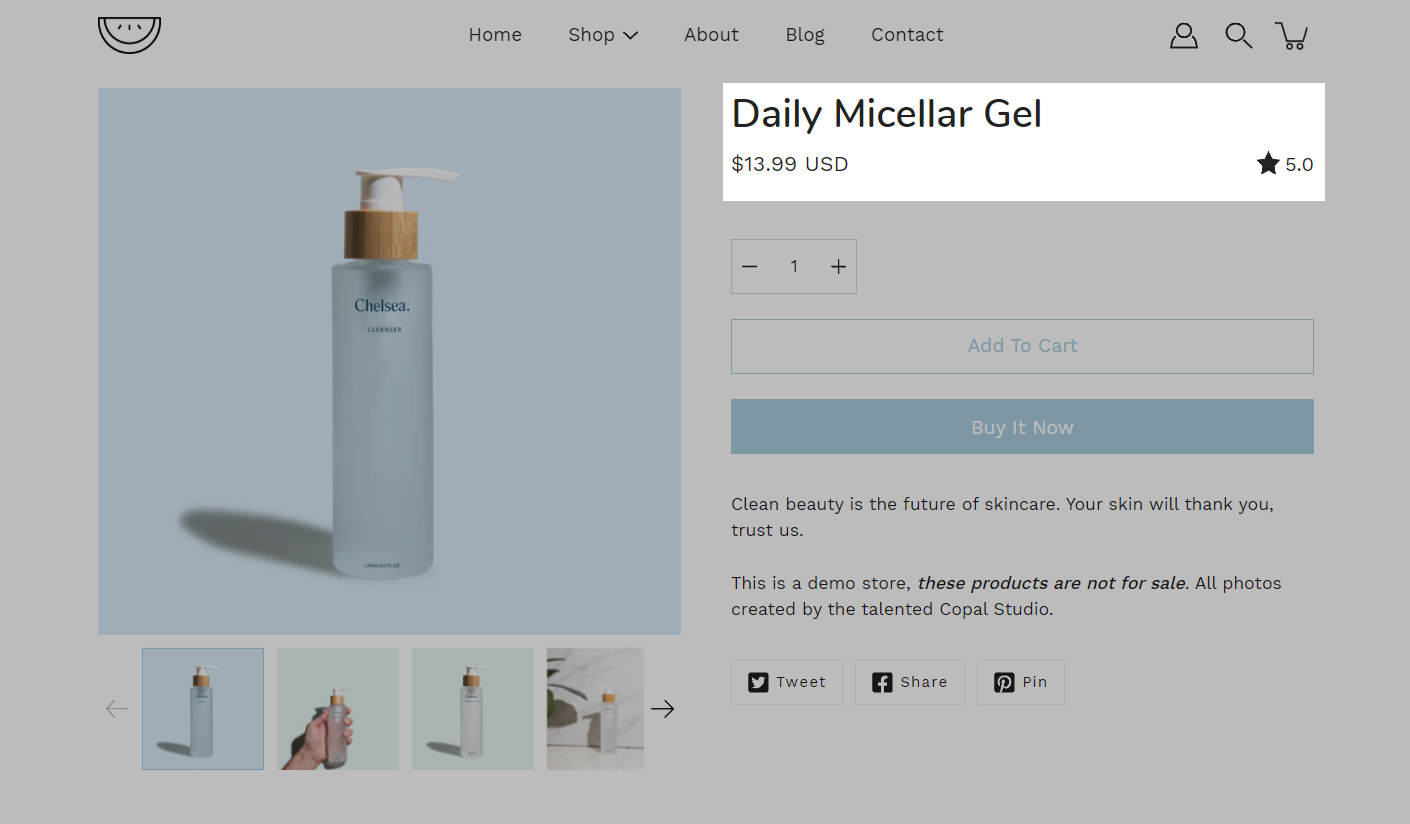
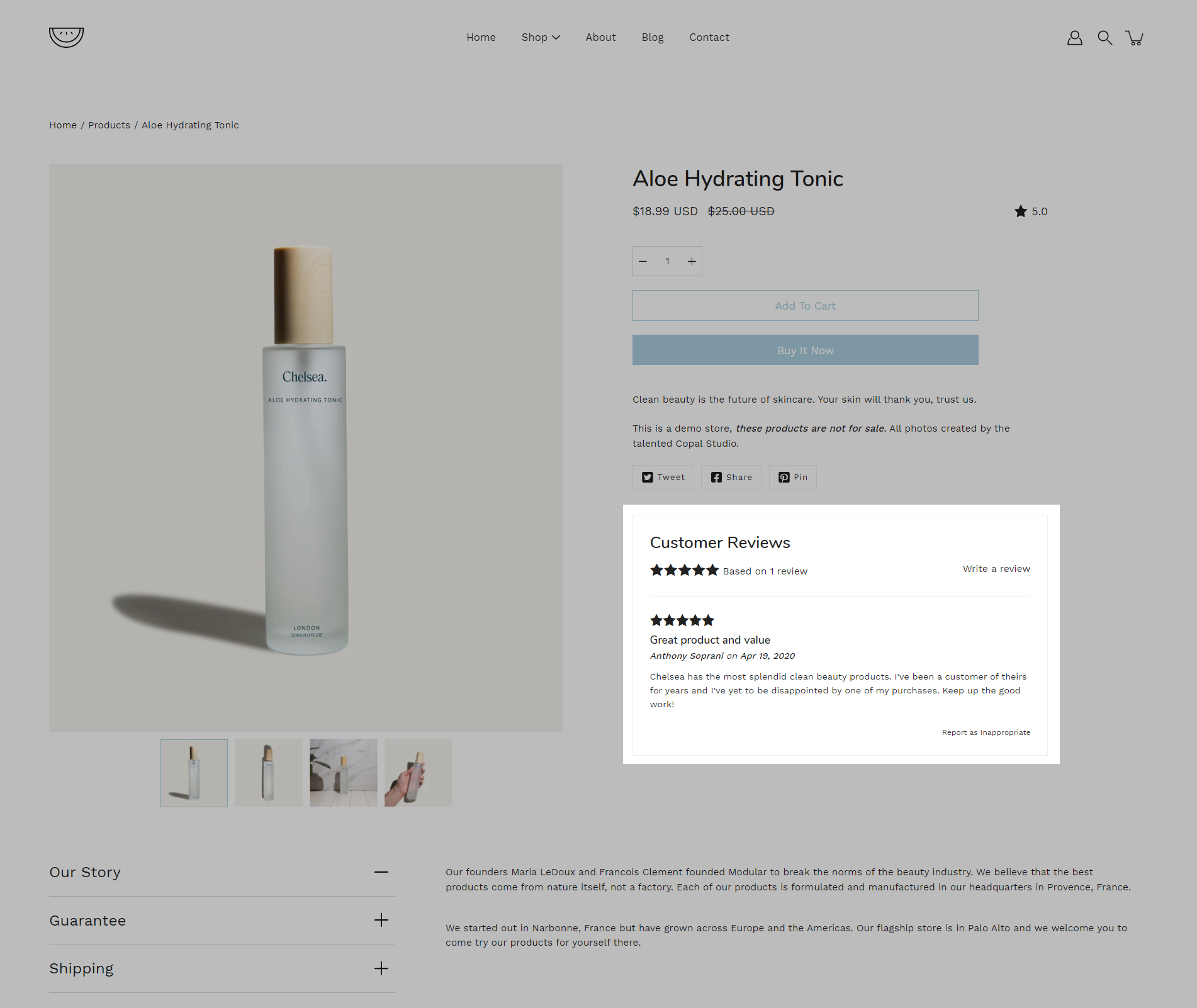
Star and average rating value next to product name:
Individual reviews and forms to add a new review can be shown below the product description:
Collection page and product grid sections
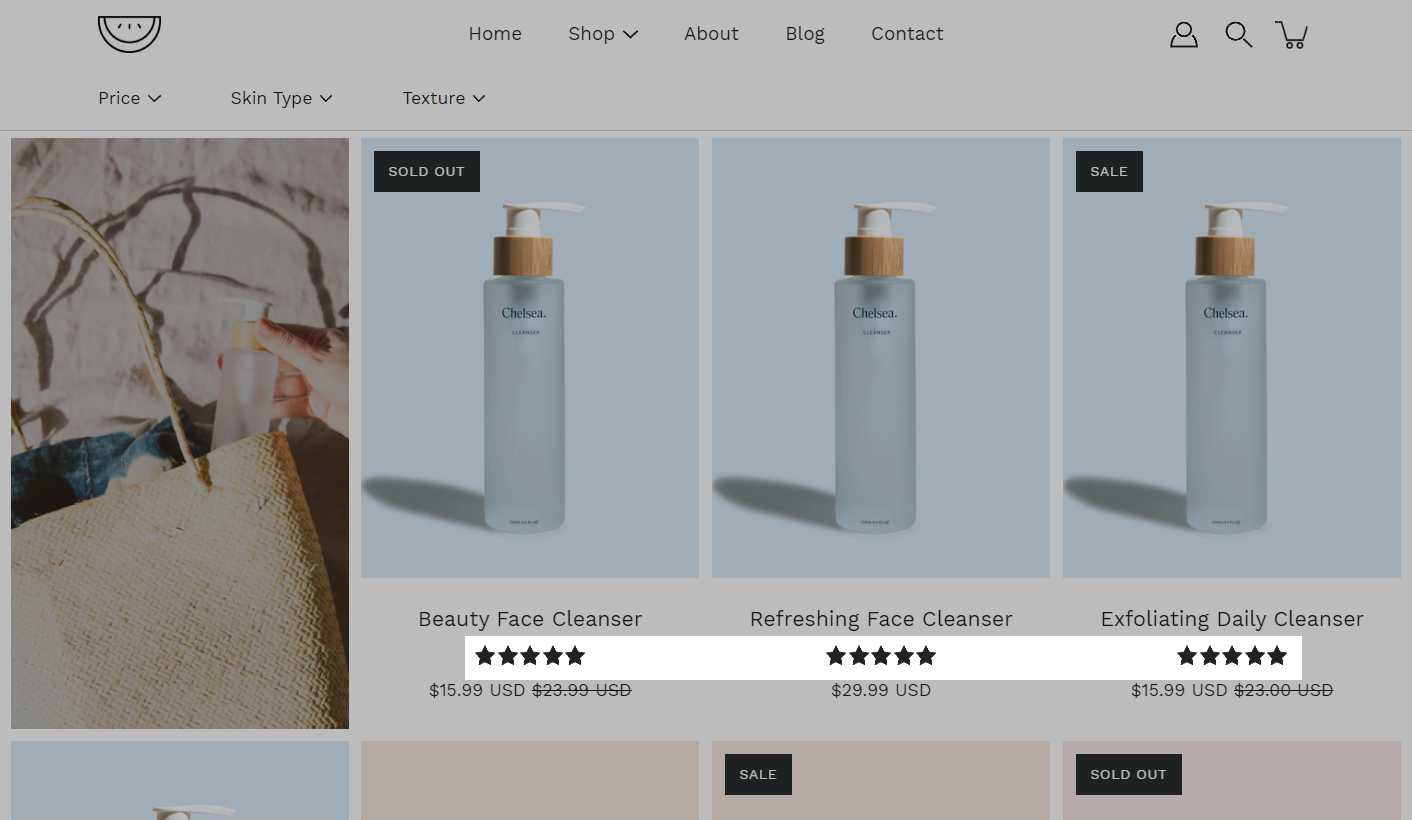
Stars can be shown above product name and price:
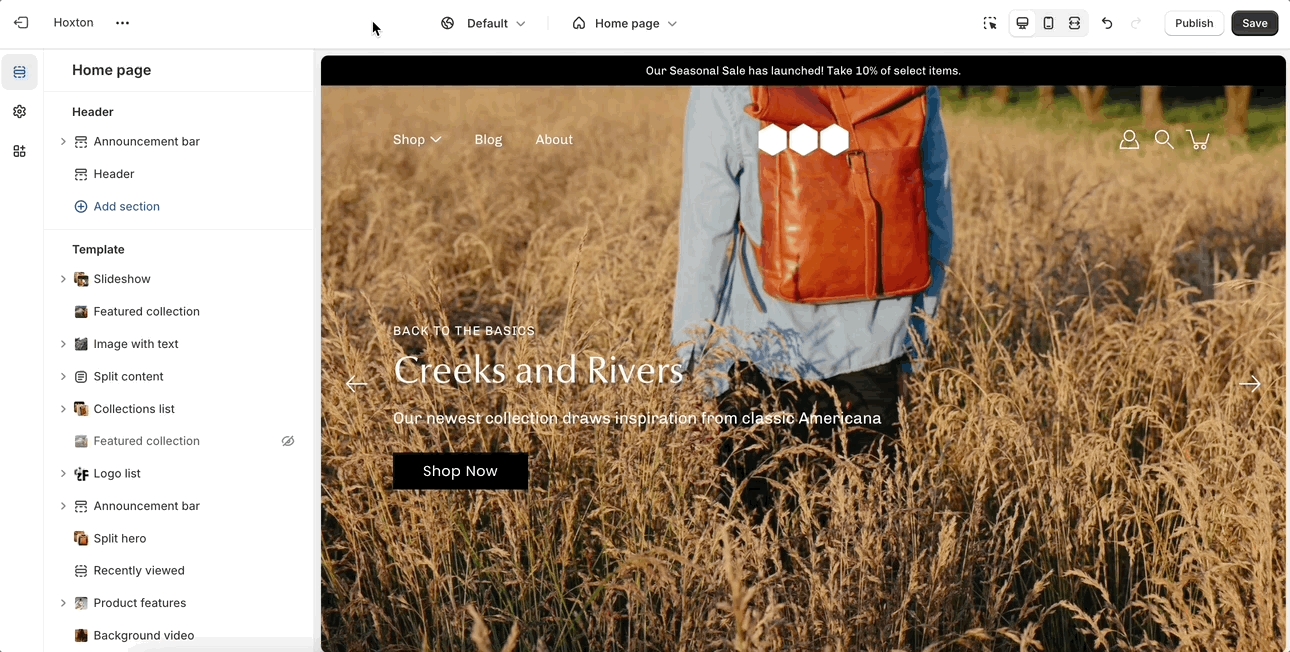
The option to enable this can be found in the collection pages section under the theme settings tab.
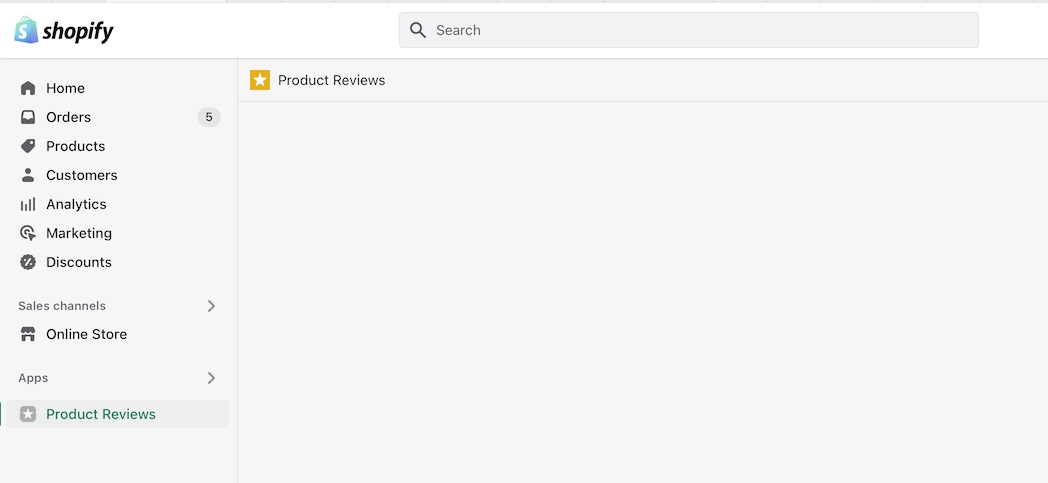
Modular includes quick and easy settings in the theme editor to display ratings. The main requirement is that you have the Shopify reviews app installed:
If you don't have the app installed, use this link to download it.
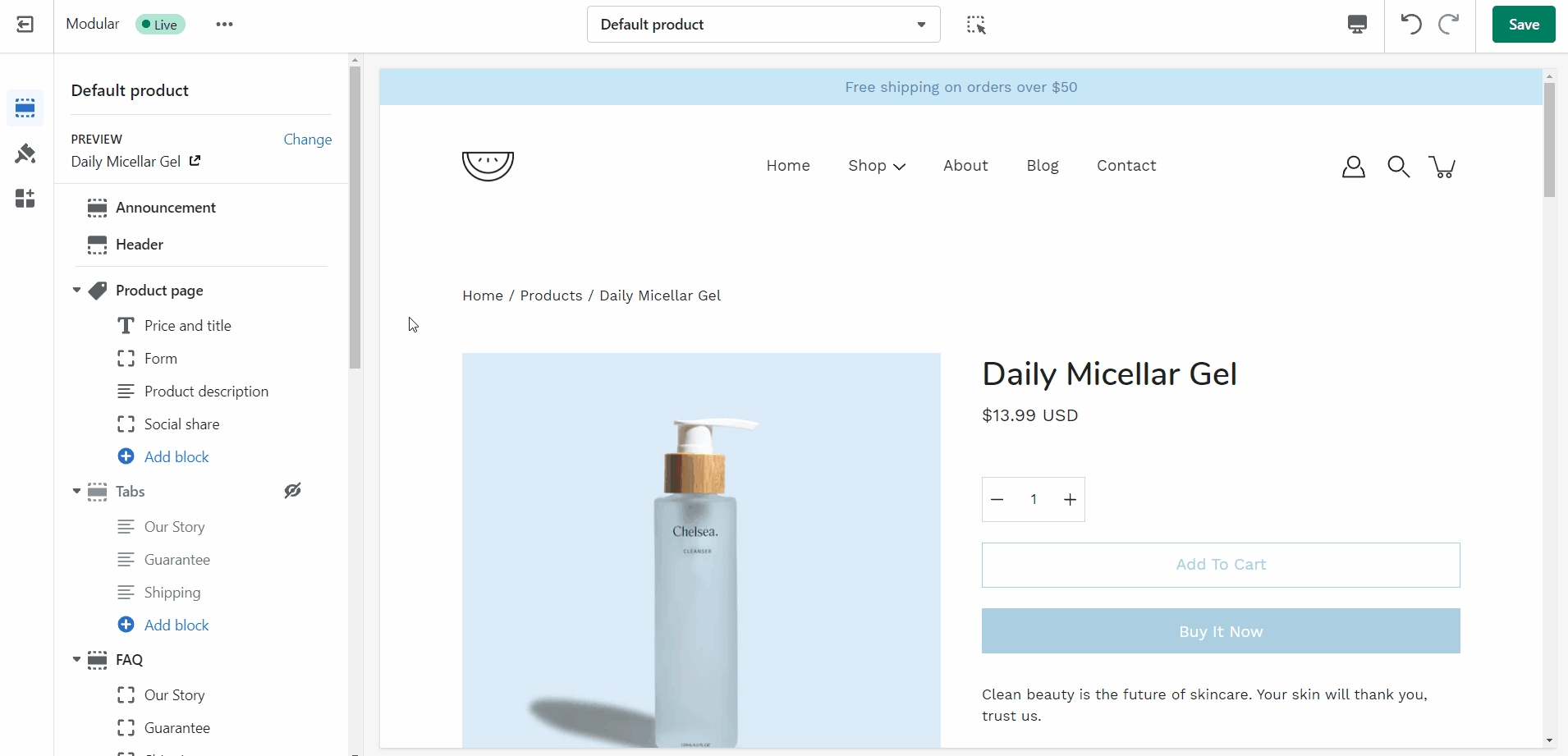
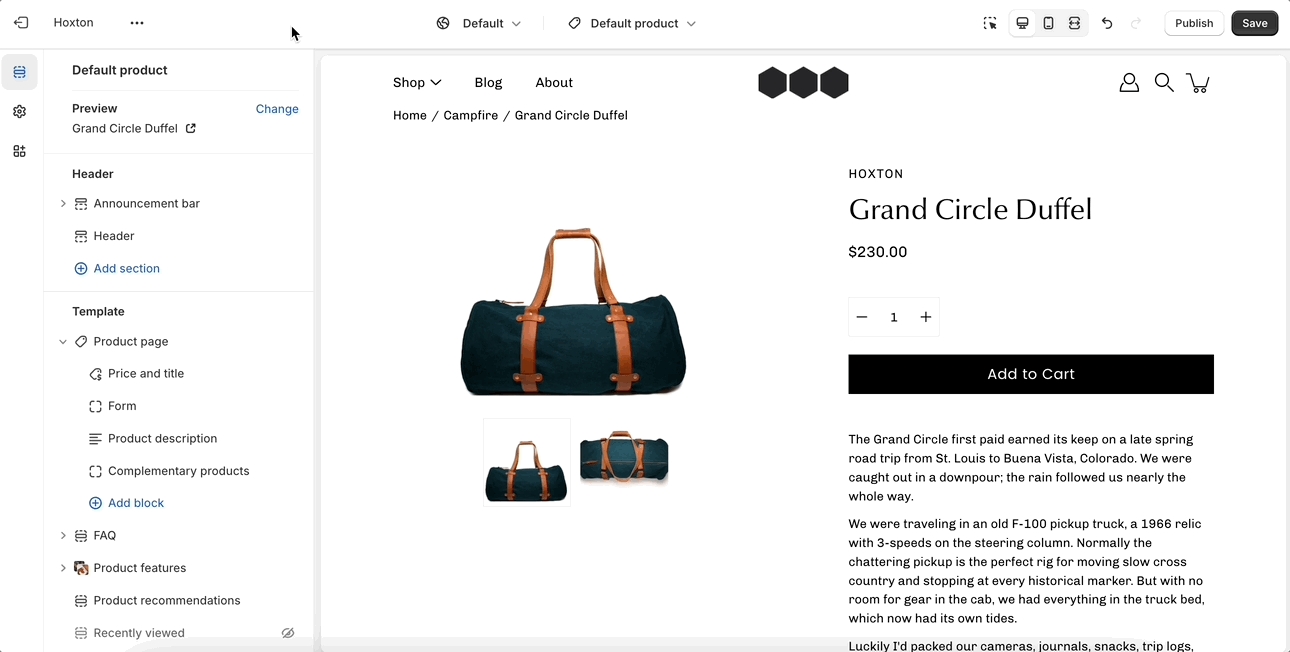
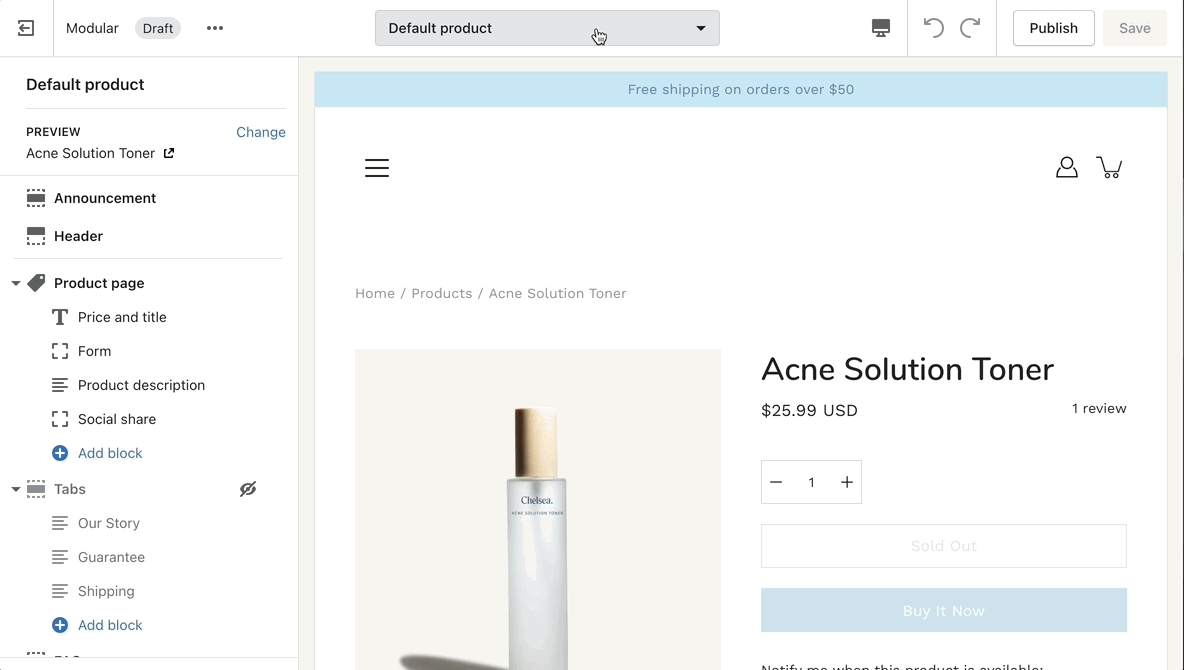
For the product detail page, you can easily add the rating value, star, and the number of ratings from the price and title block under the 'product page' section:
There are checkboxes for the following:
Show star rating - Adds a star icon next to the rating number.
Show rating count - Displays the number of reviews for the current product.
Settings and layout options for product pages
The new product page template in our Modular theme is built from the ground up with the new features introduced in online store 2.0 in mind. The use of JSON templates allows for dynamic sections to be used to truly customize your product pages to your style.
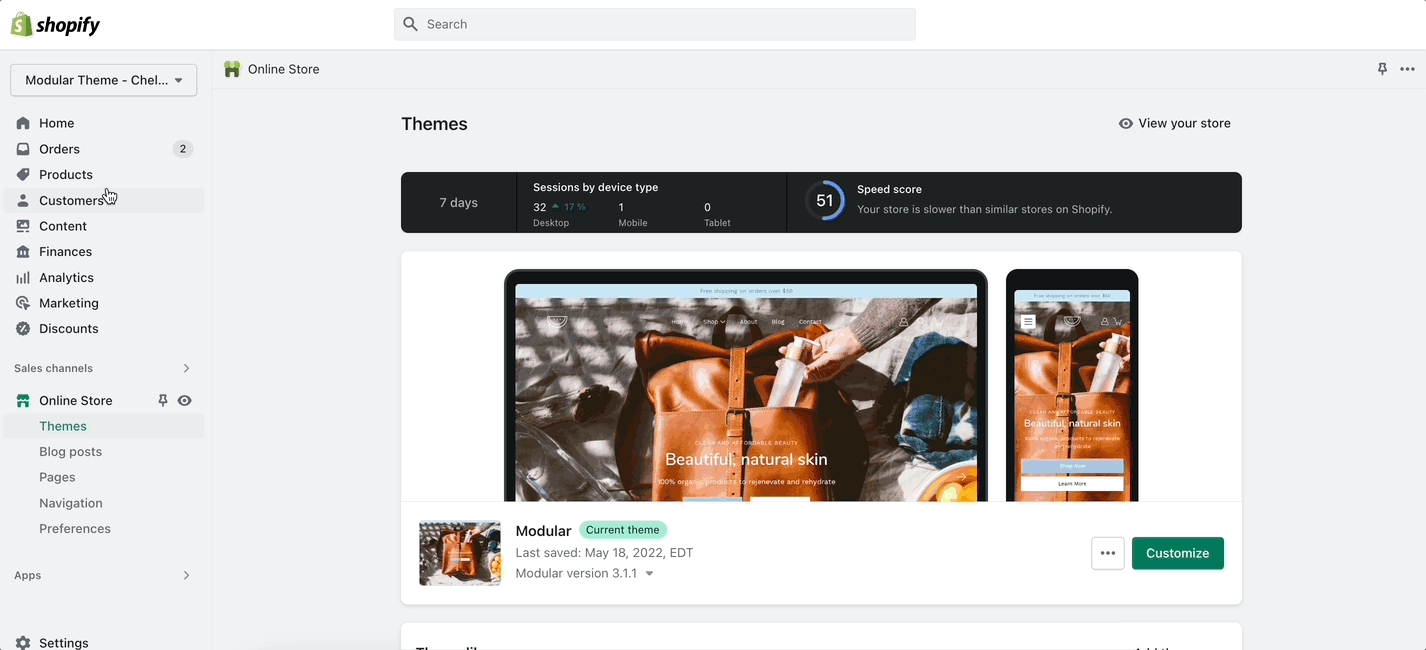
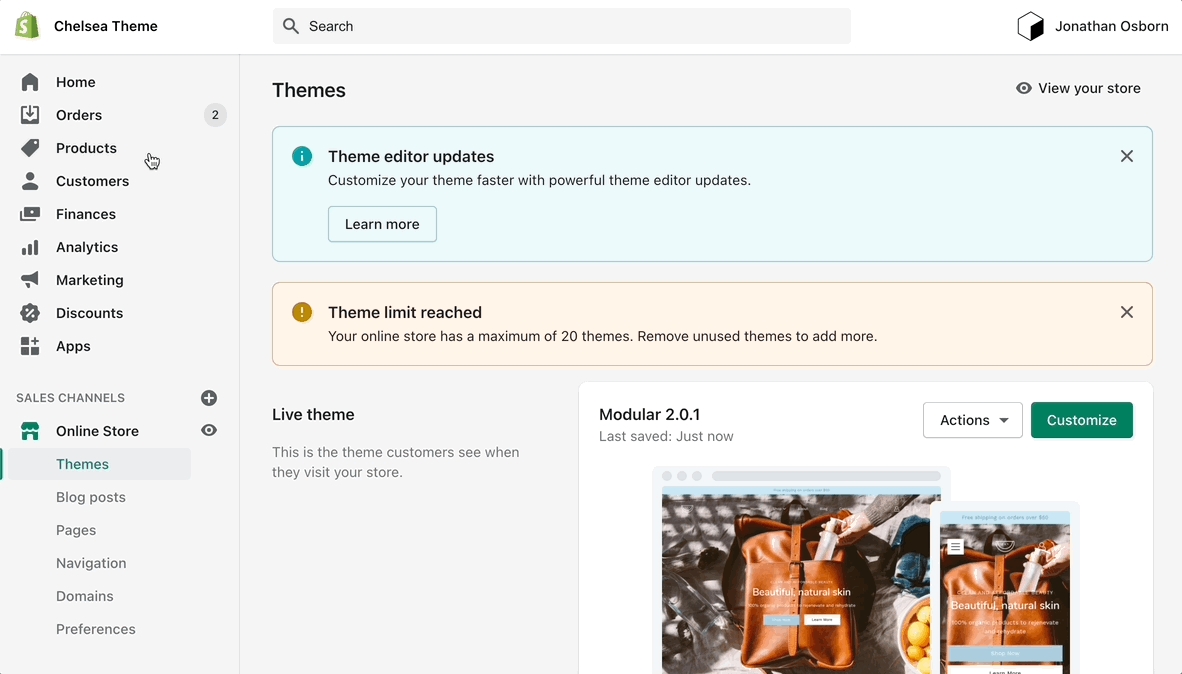
Accessing the product pages can be done by opening your theme editor and clicking on products. This will show all of the available product pages in the specific theme copy you are editing.
A big part of the settings can be accessed from the section blocks. They can also be moved around if you're looking to customize the look. You can move blocks the same way can sections. Each block has six small dots that you can click and hold to drag and drop them between one another.
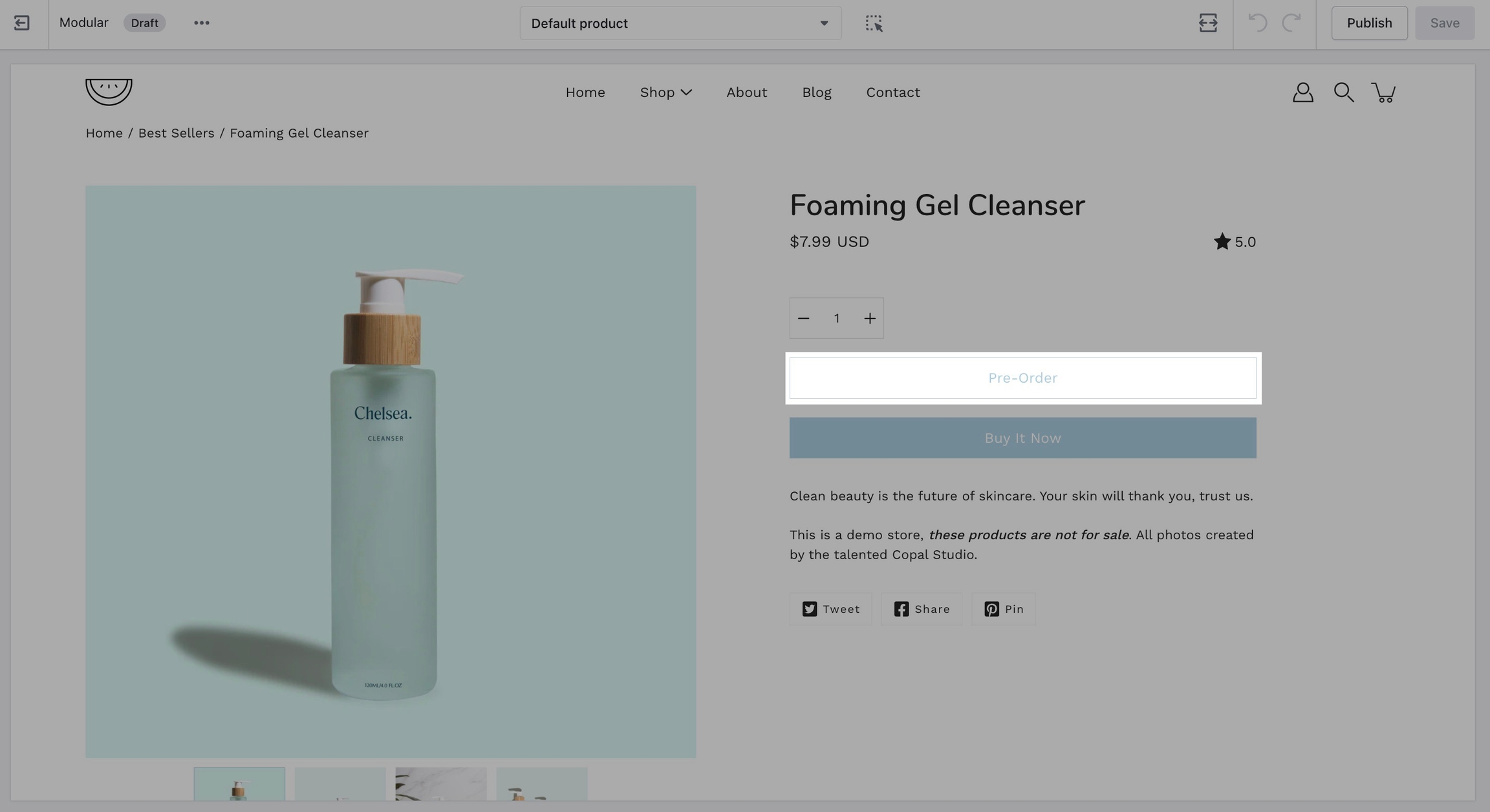
Replace the 'add to cart' button with a 'pre-order' button
Creating new JSON templates for your products
When creating new JSON templates, you need to have at least one template to use as a base. The new Shopify theme editor is powerful and can create new templates without you ever needing to go into the theme code.
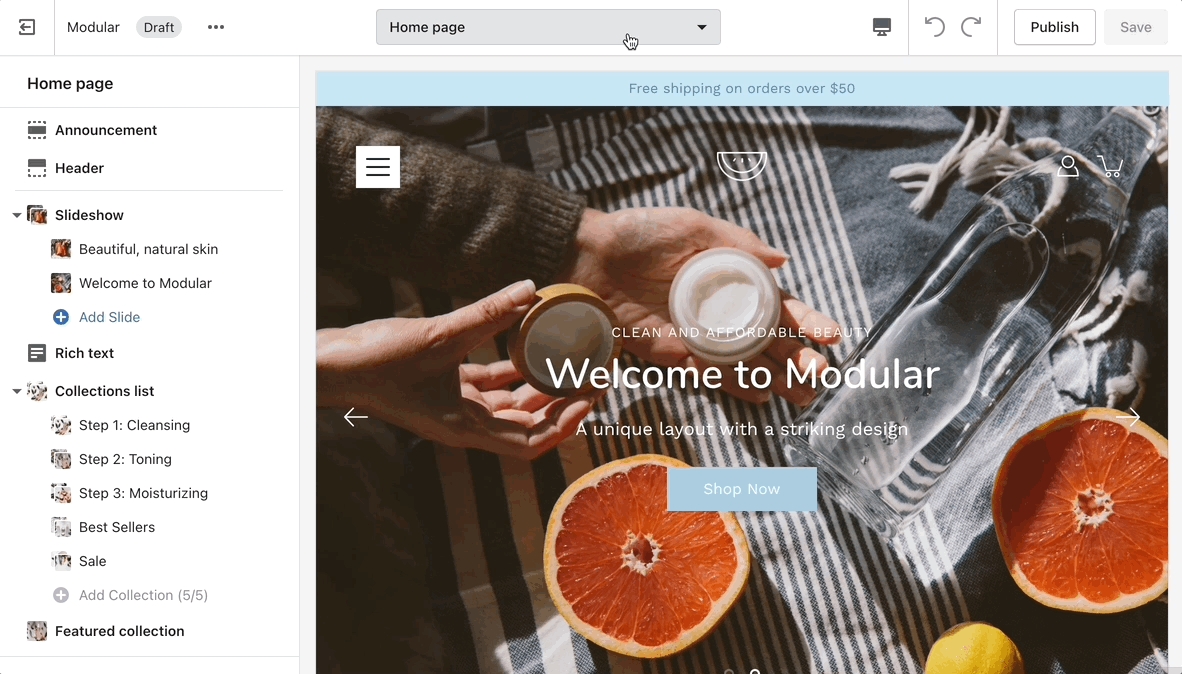
To create a new product template you need to click on the top drop-down menu and select the product tab. From here, click on 'create template' after which give your new template a name, and choose a template to base it on.
After the new template is created, you will find it under the same product tab in the drop-down menu. You will be able to set up each product page individually and create truly unique pages using this method.
Finally, after your product page is ready and customized all that's left to do is assign it to the product it was meant for. You can do this by going into your admin panel and clicking on products. After you locate the product you're looking for, simply scroll down to the 'theme template' tab and select the appropriate page template.
Note: You can only select the templates of your live theme. Make sure to publish your copy of Modular so that you can assign the new product page template.