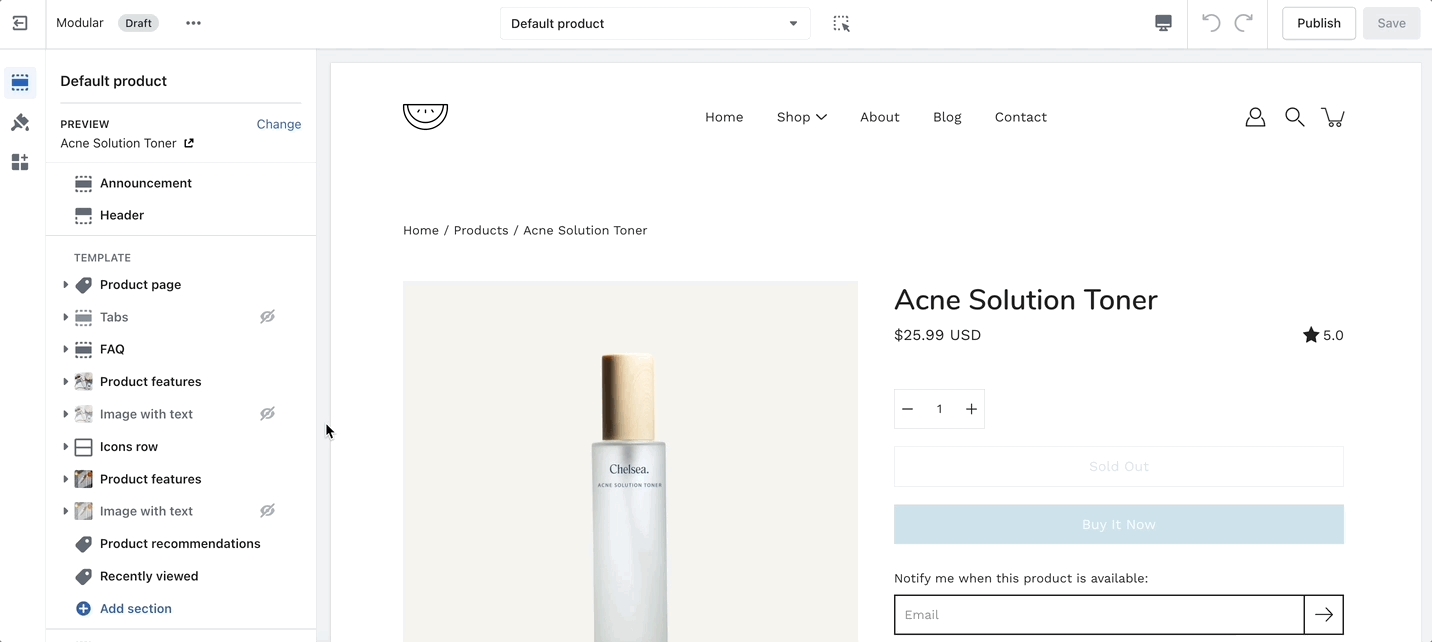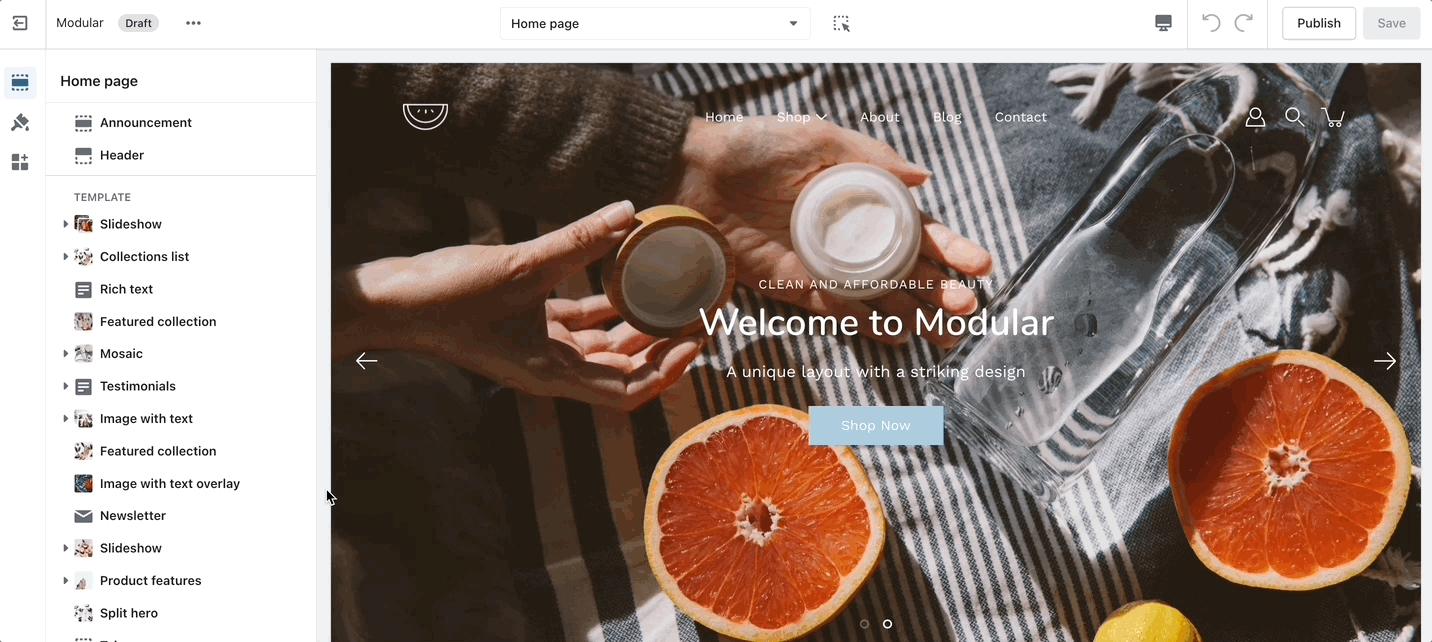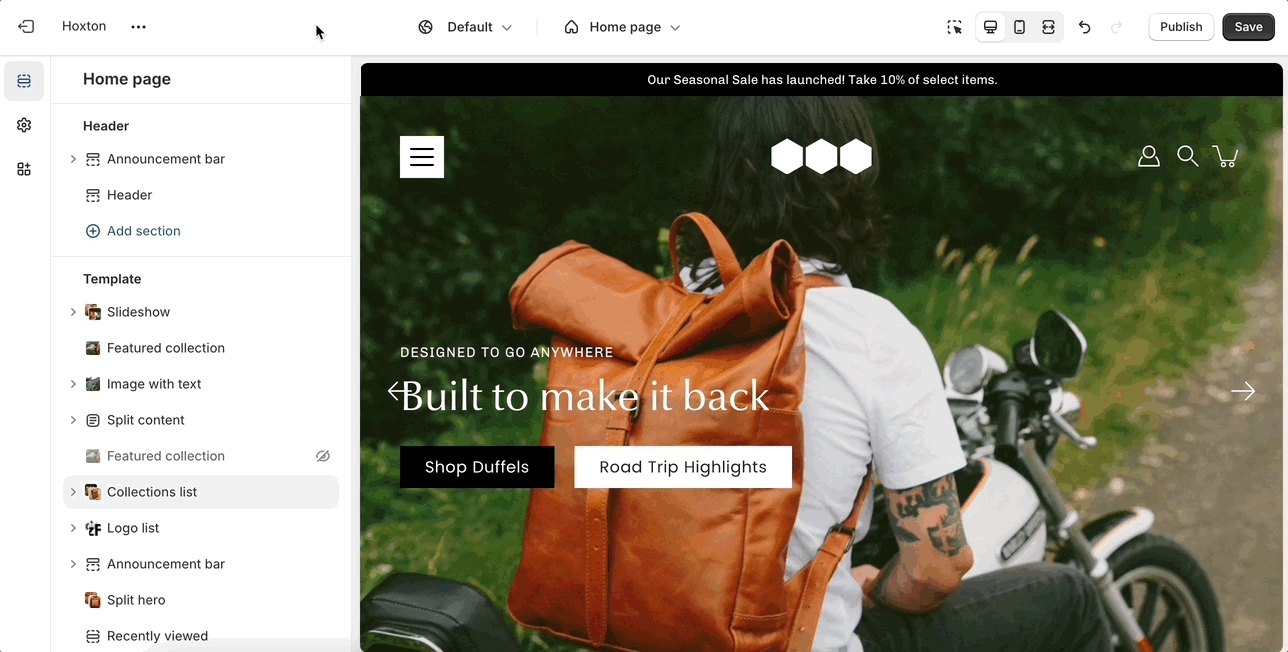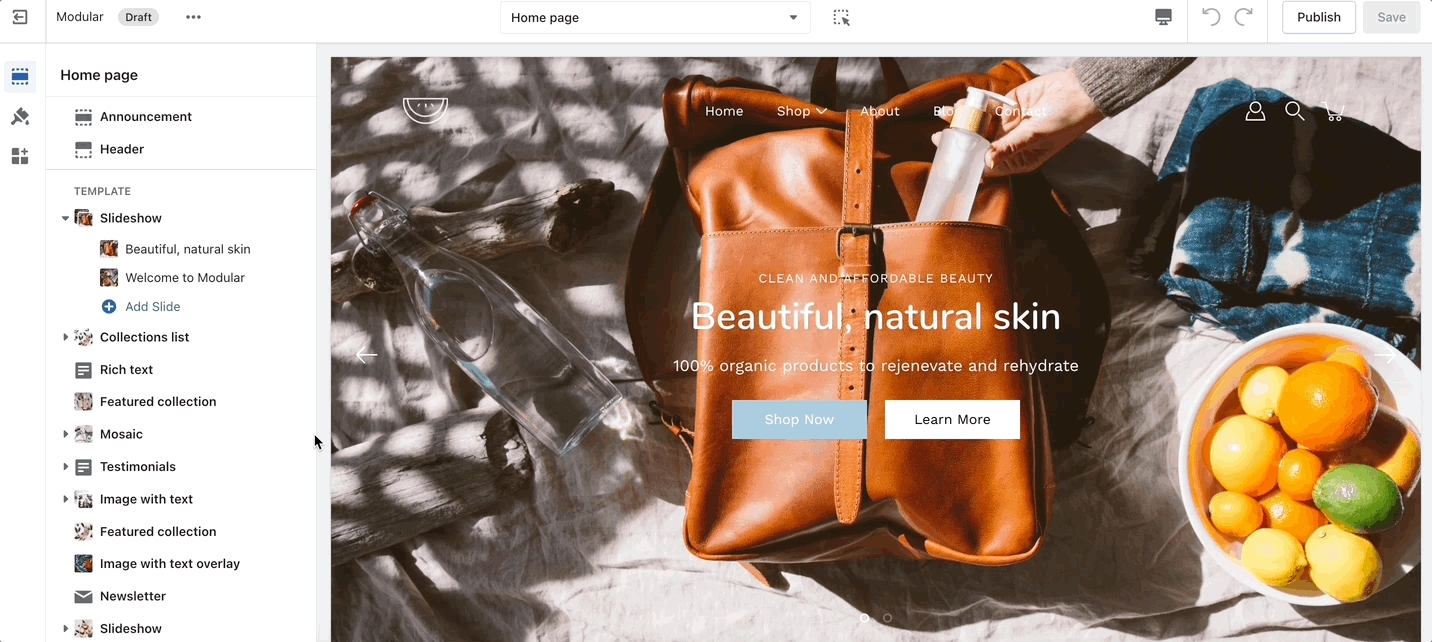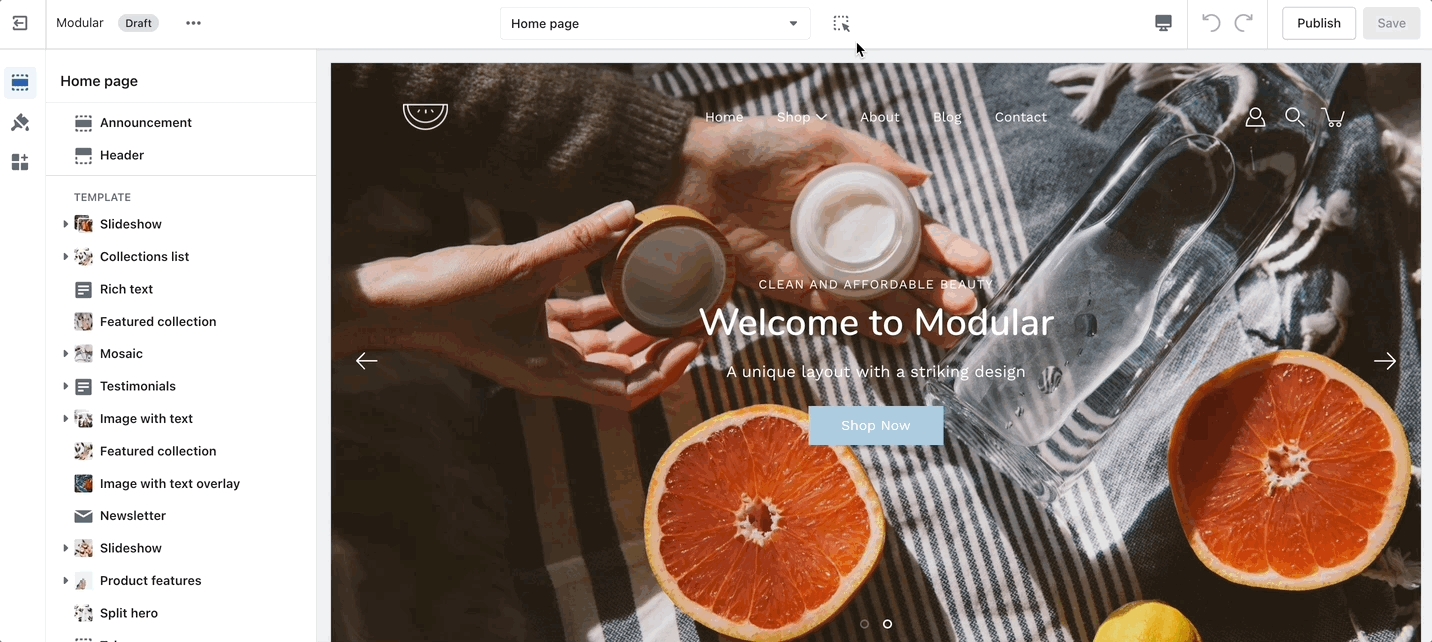
When adding a section to a certain template. The same content will appear on all pages that are also using that template.
You can create additional templates (such as a new page template or collection page template) and then assign them to your pages, products, collections, or blogs. This will allow you to create multiple pages with different content.
Scroll towards the bottom, above Footer and Popups. Choose to Add section:
Navigate to any product page or choose the default product template. Use Add section located above Footer and Popups:
Navigate to any page on your site or choose any template from the top drop-down. Choose to Add section, which is located above Footer and Popups on the left panel:
New templates need to be created on the published theme. They will not appear as a template option for assignments if created in a draft theme.
This is a Shopify platform restriction. Always make new templates on the live/published theme.
Customize your store using these Modular sections
Modular comes complete with 20+ professional theme sections to help you merchandise your online store. Sections can be added to any page on your store.
Discover the complete range of sections and their settings. Experiment by adding different types of sections and section blocks to the homepage and the other pages within your store.
These sections can be placed on any page including:
Homepage
Product pages
Collection pages and Collection list
Blog index and Blog posts
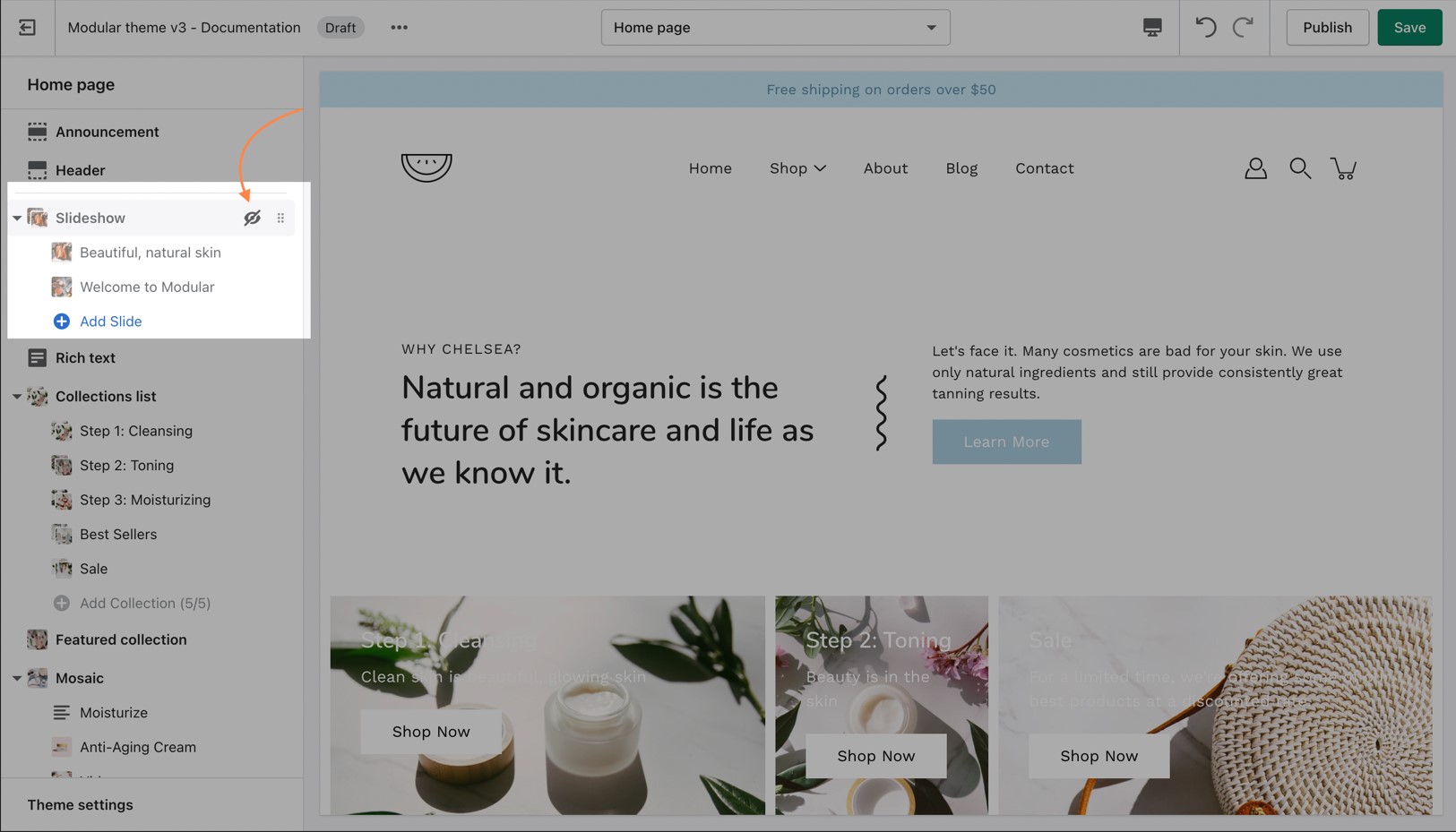
Use the toggle (eye) icon next to the section title to toggle the display of the entire section:
Use the handle icon (stacked dots) which is located next to the eye icon to drag a section and drop it in a new position:
Shopify pages
404 error page, Search page, Password page
Cart page
To find the primary settings for each section, click on the section name to view the settings panel. These settings control the elements of the section.
Wider desktop screens will display the settings panel on the right side of your screen.
Under each section settings (as well as under all sections inside the Theme Editor) you will find a button to the Theme Settings. These are a number of global settings grouped together for ease of use.
Some section settings are also placed under the Theme Settings so if you're looking for a setting you feel are not finding, it might be under this little tab: